
17:00 → 22:00
Weekdays · 5 hours
0009171822
Family time
Guilty about using your phone or computer to do "important work" after coming home? Block the devices that get in the way, and be present for the people who matter the most.
Windows + Android · Available now
Start the timer — at bedtime, mid-game, mid-scroll, whenever you need it, or schedule. No clicking, no alt-tabbing, no negotiating your way back in before then.
Your distractions, burnt up. Your mouse and keyboard are back.
The problem
Games, feeds, one more episode — the pull is always there, and it's strongest exactly when you've decided to stop. Site blockers ask you not to click. This one takes the click away.
Decide once. Not forty times a night!
Device blocked
17:42
25 min session
Hold Esc to end this session early · 1 left this month
Stuck on your lock screen? Press Ctrl Alt Delete to get back in.
The app
Every feature, kept simple.
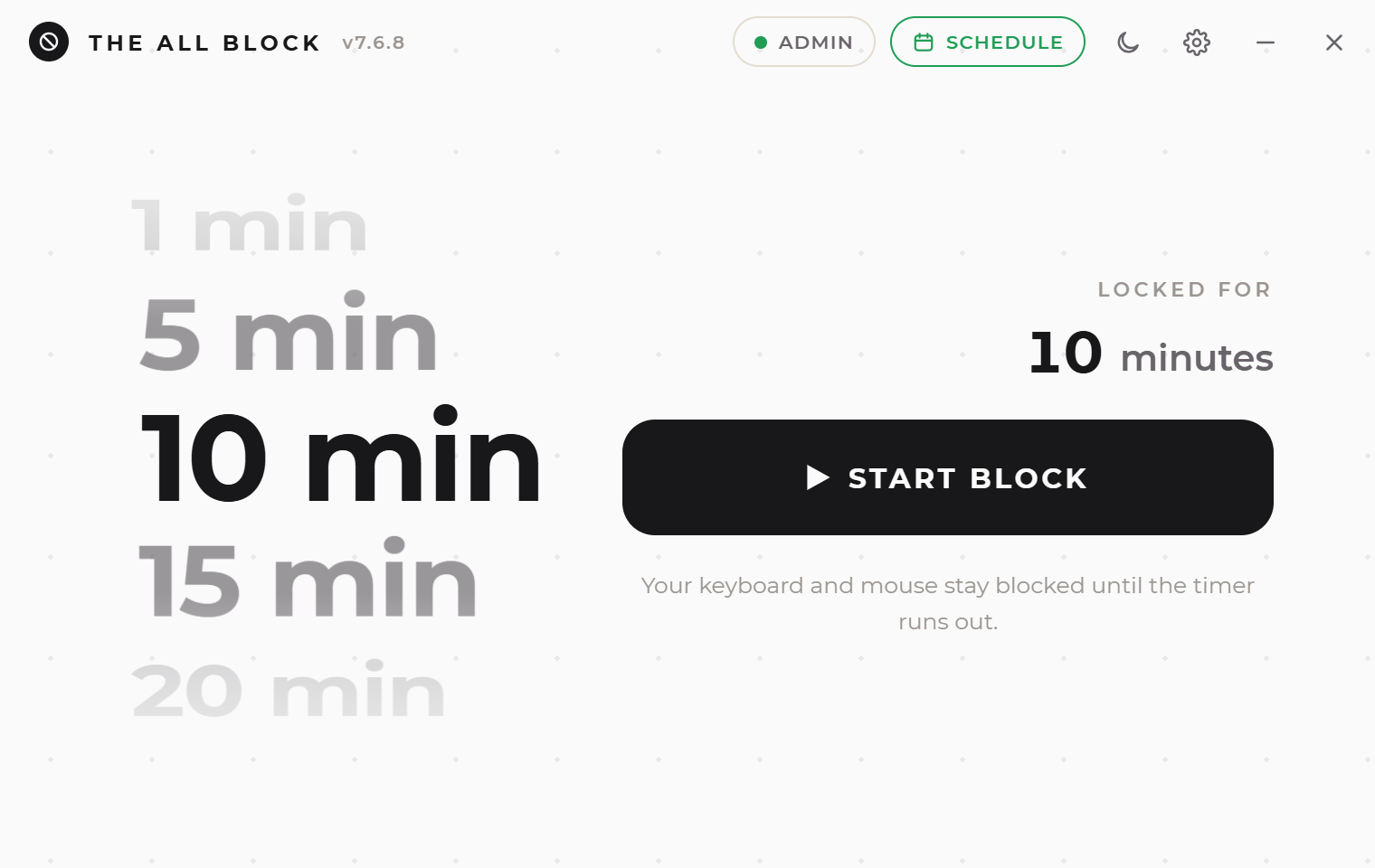
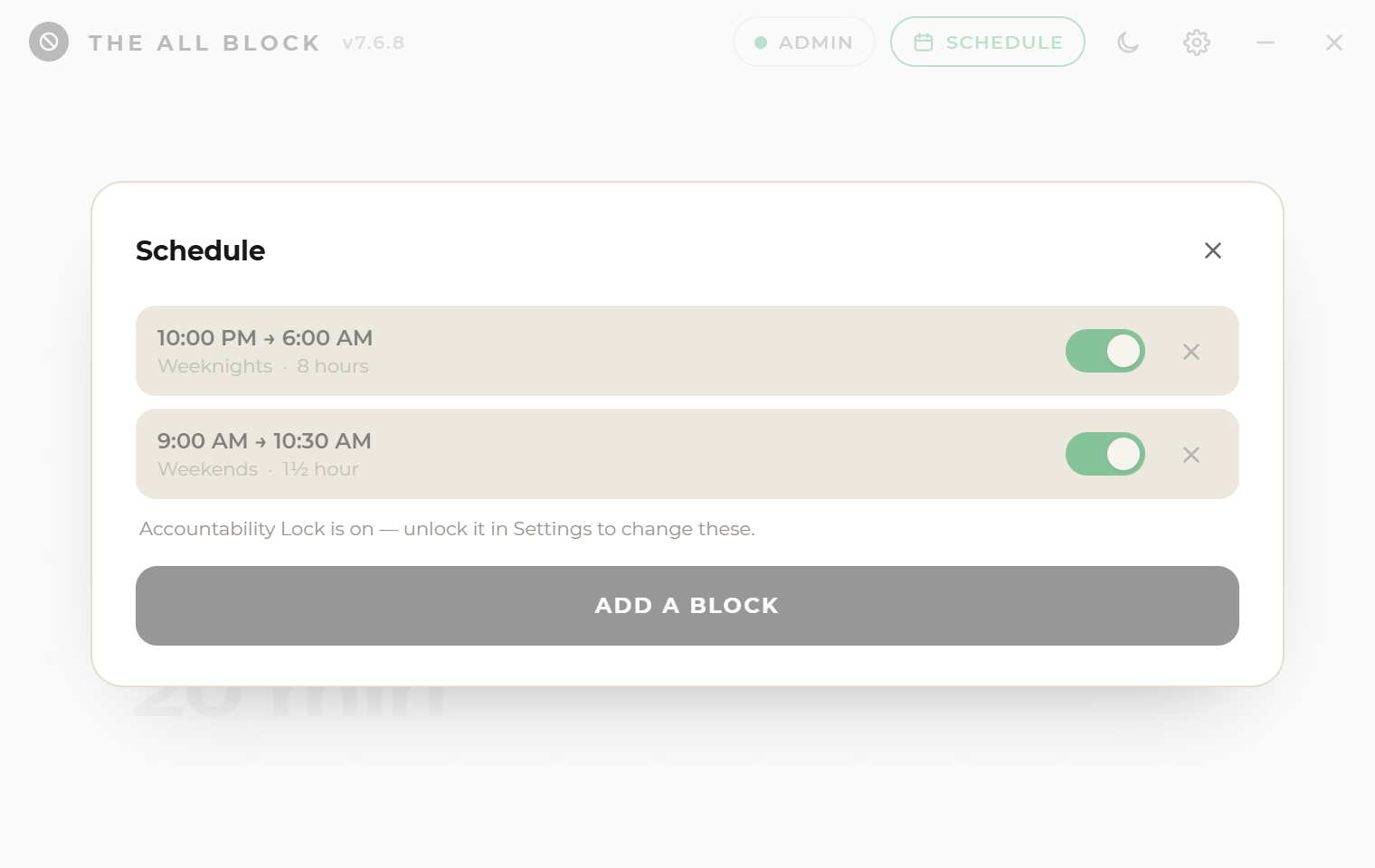
Start from a suggestion
or set it up yourself
Days
Start at
Until
Weekdays · blocked from 9:00 AM until 12:00 PM — 3 hours.
Save block
How it works
Spin the wheel anywhere from 10 seconds to 3 hours — or put it in the schedule and never pick again.
The mouse and keyboard stop answering, system-wide. Alt+Tab and the Task Manager shuffle go with them.
The clock runs out and everything returns at once. The session lands in your history.
Who it's for
Nobody installs a blocker because they're short of good intentions. They install one because the intention keeps losing to impulse.
17:00 → 22:00
Weekdays · 5 hours
0009171822
Guilty about using your phone or computer to do "important work" after coming home? Block the devices that get in the way, and be present for the people who matter the most.
19:00 → 21:00
Term time · 2 hours
0006121824
Deciding to start is the hardest part of every session, and it's a decision you have to win again tomorrow. Set the schedule once, and it becomes a routine.
23:00 → 07:00
Nightly · 8 hours
0006121824
You know it's bad for you — Yet you keep doing it until 3am! Which is exactly why a blocker you can switch off is no help at all. Set your sleep schedule with an accountability partner, and reclaim those much needed hours.
16:00 → 17:30
Daily · 1.5 hours
0006121824
Protect the part of the afternoon when your attention is still yours. Block the distractions, open the book, and turn a good intention into a daily ritual.
Every one of these is the same block underneath — the whole machine, for as long as you set. Start one by hand, or leave it to the schedule.
Coming from Cold Turkey or Freedom
Every other blocker operates on a list — sites, apps, or a list you’re expected to constantly update. Lists have limitations, and the urge to escape is remarkably adept at finding those gaps: the app you missed adding, the second browser, the phone hotspot, or the setting you can still reach because your keyboard still works.
The All Block doesn’t use a list at all because it isn’t blocking anything. Instead, it disables the mouse and the keyboard for the duration of the session. Not just the browser — the entire computer. There’s no app it overlooked, no window you can click into, because clicking itself has been disabled.
It seals the loopholes those apps leave open. It runs as an administrator, so nothing else can shut it down. It survives a reboot and reappears locked. Task Manager, Alt+Tab, and Ctrl+Alt+Del can’t break through.
Then the schedule removes the final barrier — you. A block that activates automatically at 09:00 was never a choice you made, and the urge to escape lives entirely within that decision. Place the Accountability Lock at the top, and even you can’t undo it.

Stop wasting your time
You won't get it back
Accountability Lock · part of Pro
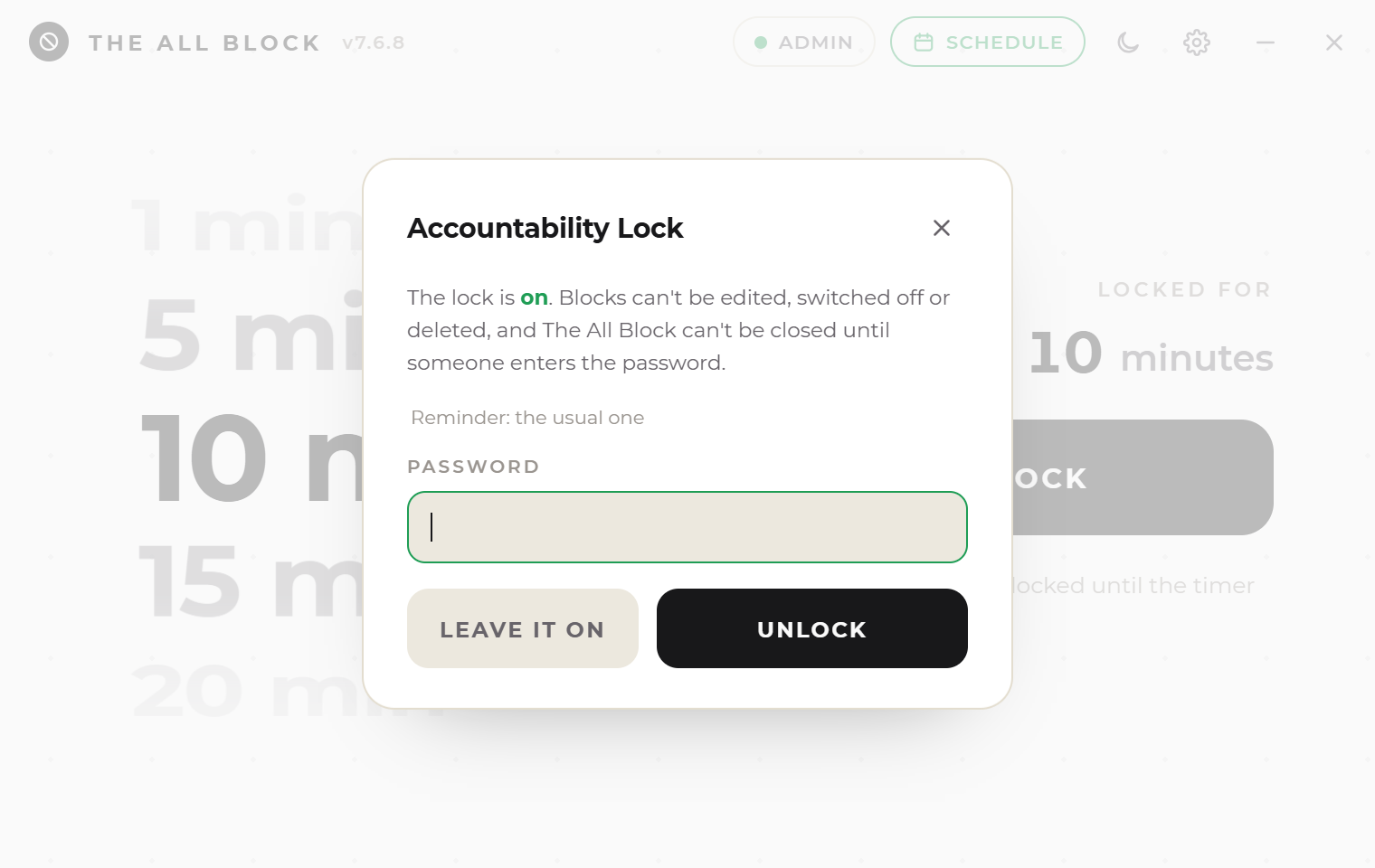
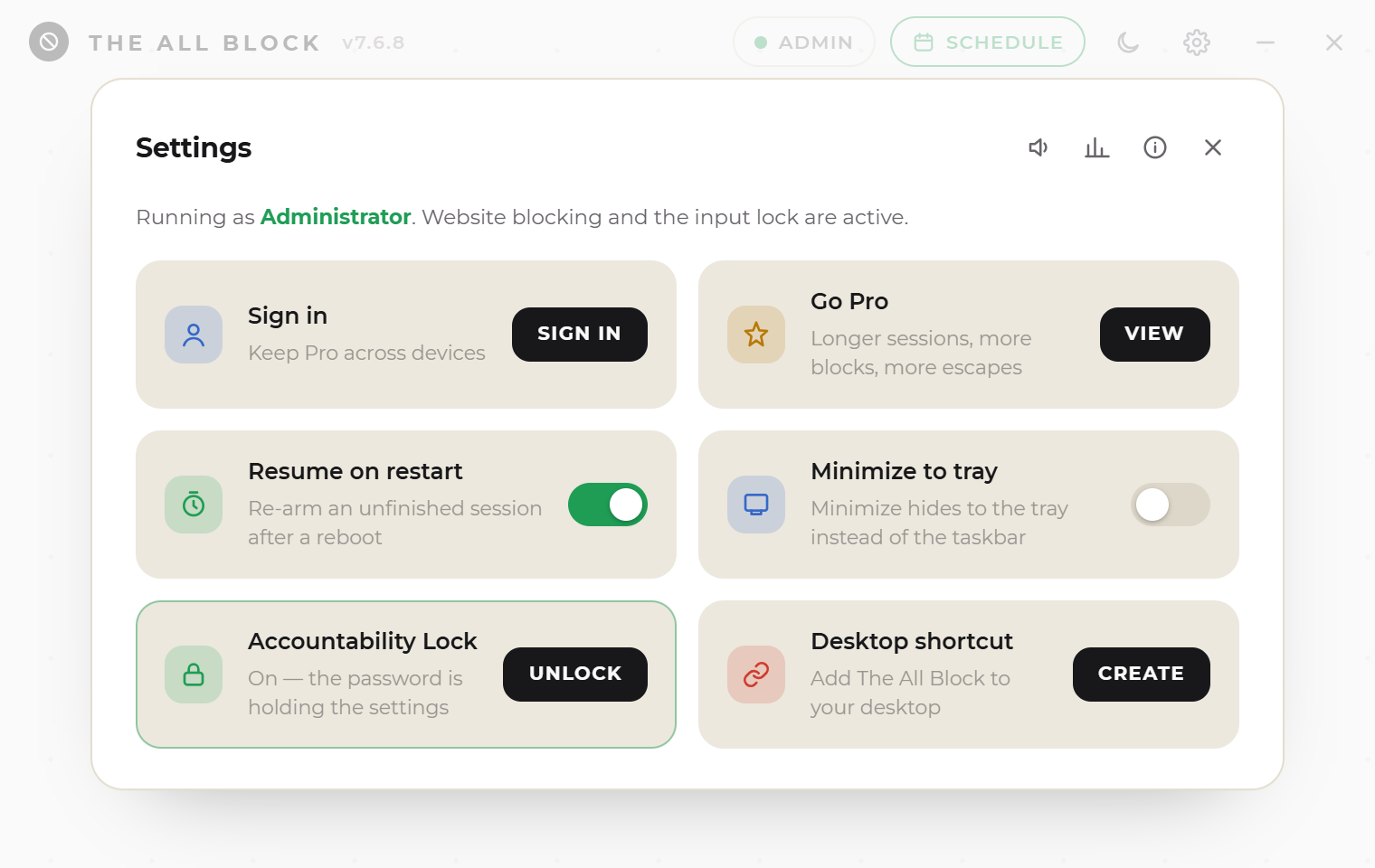
A schedule only lasts until the person it’s meant to stop opens Settings and deletes it. So set a password, and let a parent, a partner, a friend — or your own steadier self, twenty minutes ago — be the one who holds it.
One thing it deliberately leaves alone: the monthly emergency unlock. A lock with no exit at all is how somebody ends up unable to answer a phone call — so the way out stays limited and intentional, rather than vanishing entirely.
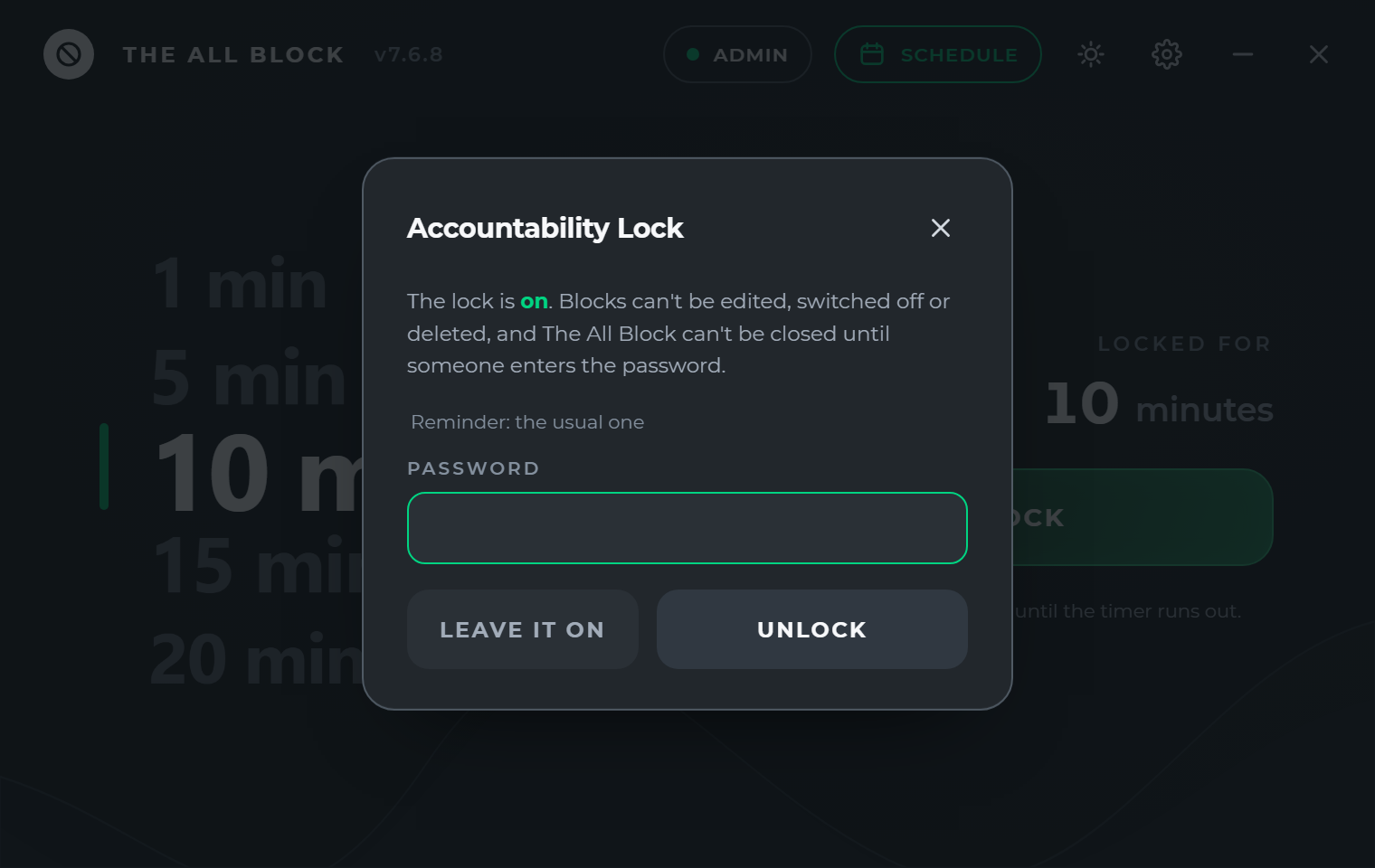
The lock is on. Blocks can't be edited, switched off or deleted, and The All Block can't be closed until someone enters the password.
Reminder: the usual one
PasswordThat isn't the password.
Windows + Android · macOS + iOS soon
Block distractions on Windows and Android. Set your schedule on either device and it syncs to the other.
On Android, the whole phone stays blocked while calls, your dialer and contacts remain available.
Block for
10 minutes on this machine
Inside
Everything you need to hold the line, and nothing that lets you talk your way out of it.
Mouse, keyboard, Alt+Tab and the Task Manager shuffle, all at once.
Days, start time and length. One block free, unlimited on Pro.
Reboot mid-block and it comes back still locked, with the clock intact.
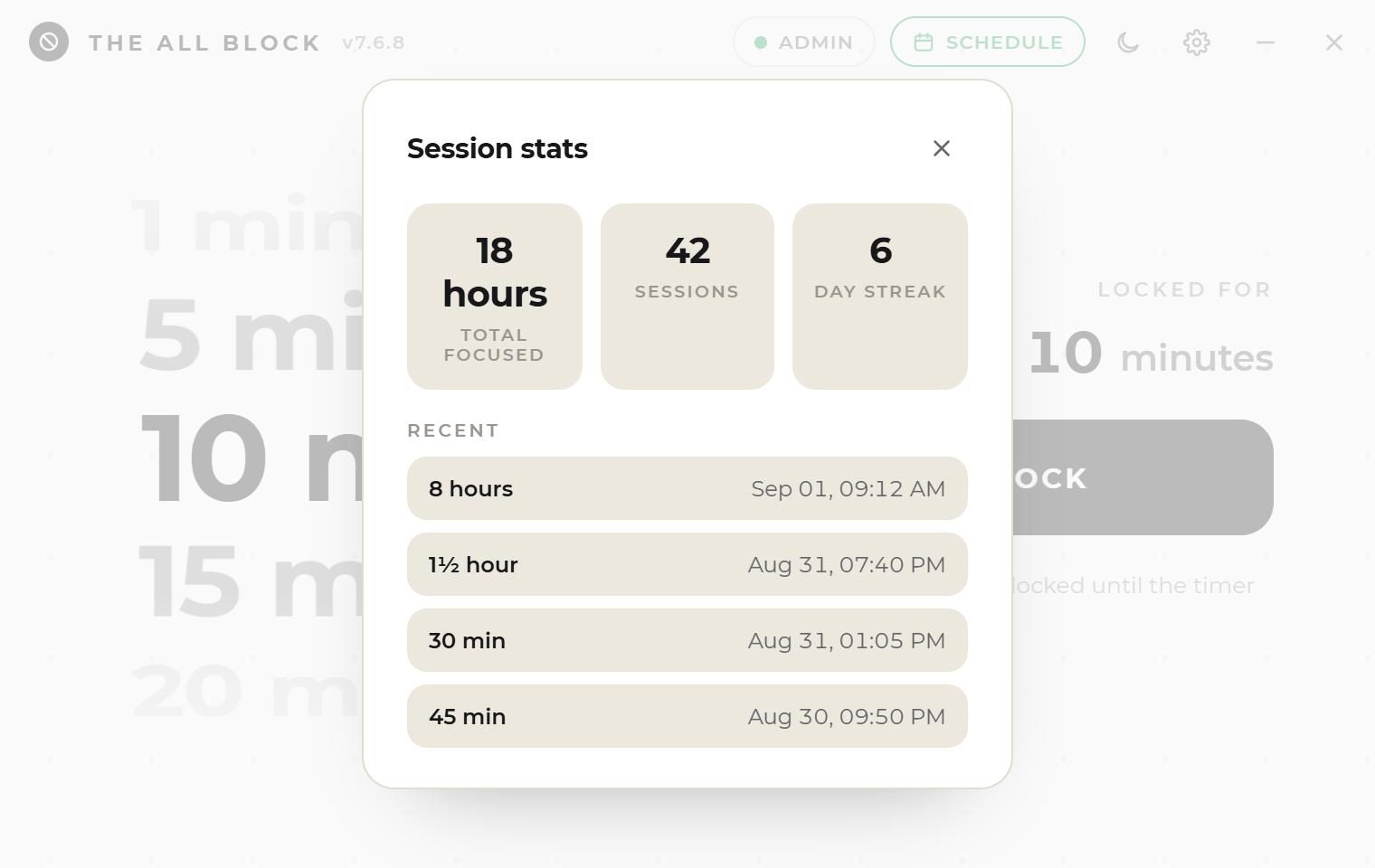
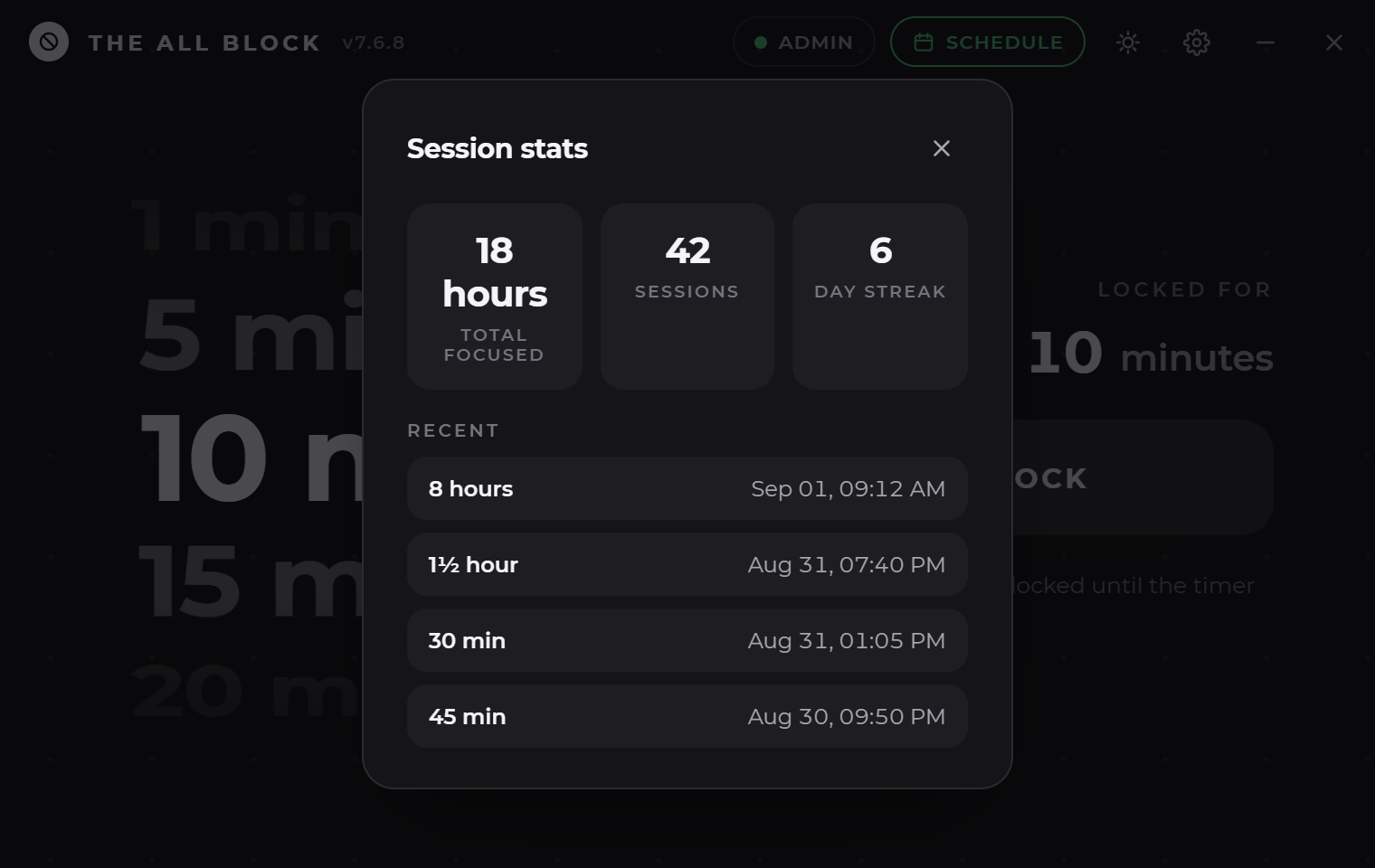
Focus time, sessions and a streak — all kept on your own machine.
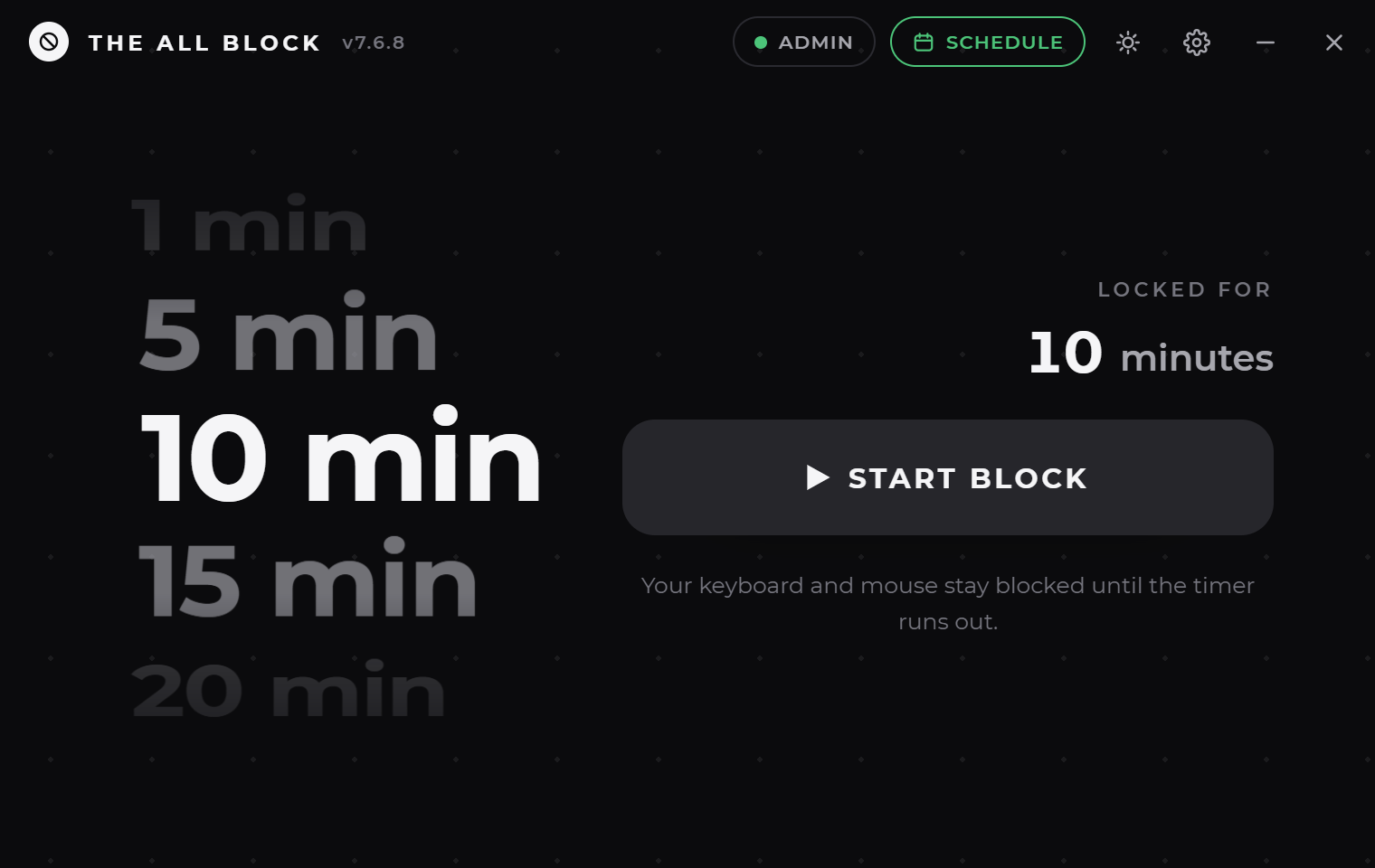
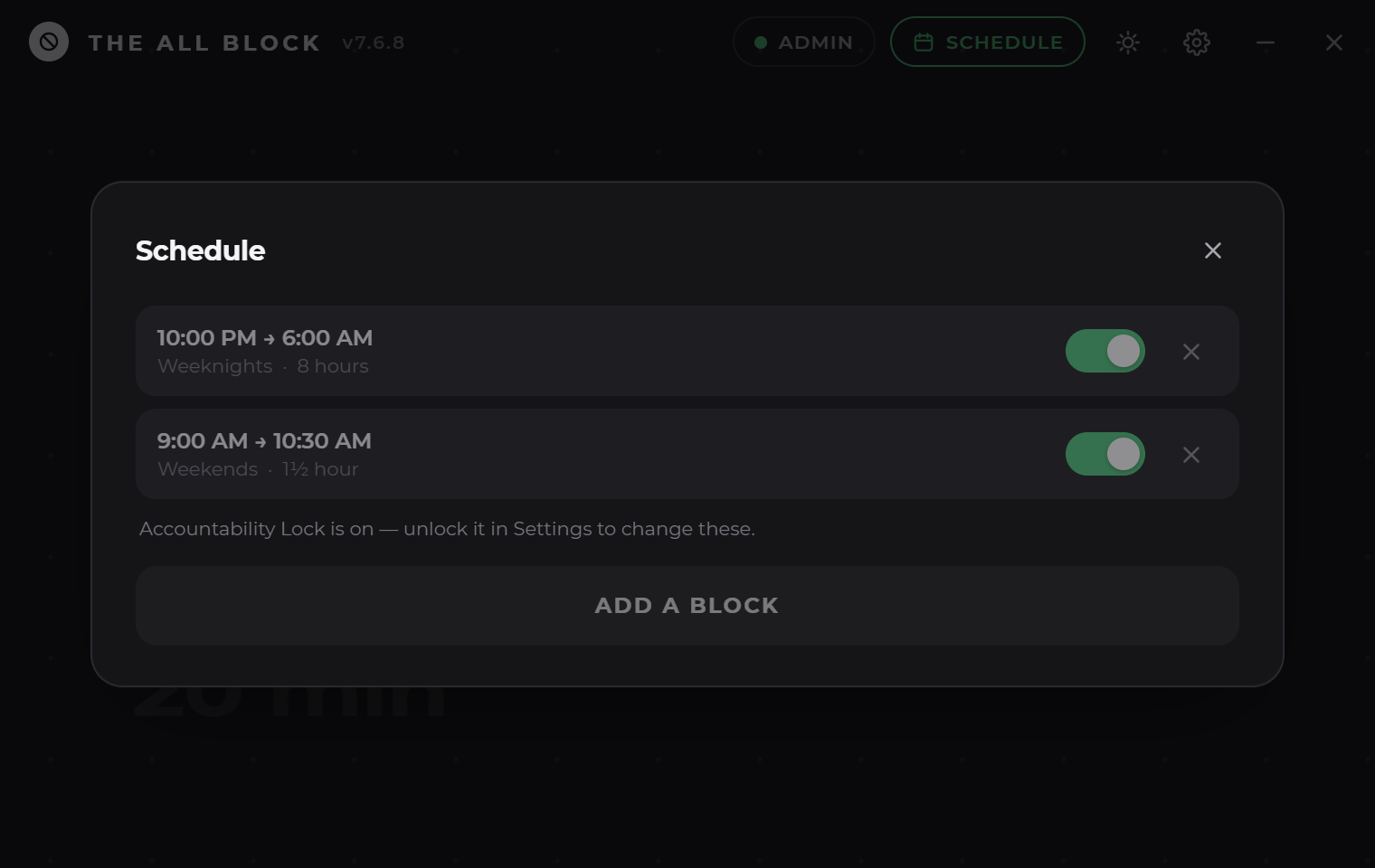
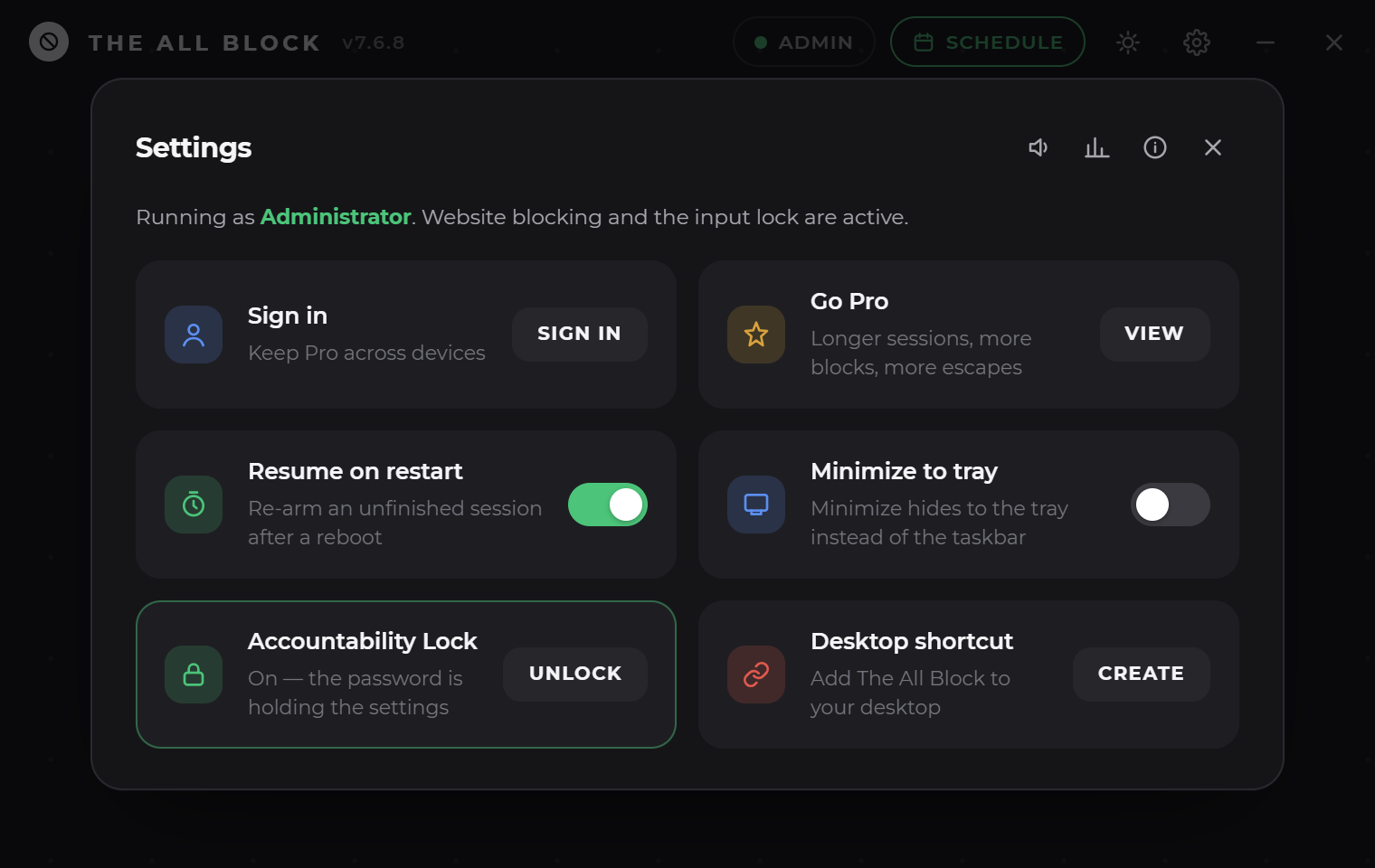
Follows your Windows theme, or pick one and stay there.
Works with no connection. An account is optional, never required.
Pricing
Manual sessions from ten seconds to three hours are free forever — that is the promise the app is shared on, and it is not going anywhere. There is no trial to run out and no card to enter: Pro is there when you want more.
| Blocker | Subscription | Pay once |
|---|---|---|
| Opal | $99.99 a year | $399 · about £300 |
| Freedom | $39.96 a year | $199 · about £150 |
| Jomo | $29.99 a year | $99.99 · about £75 |
| Cold Turkey Blocker Pro | None | $39 · about £30 |
| The All Block Pro | £34.99 a year | £49.99 |
Prices as published by each company in September 2026, converted at the rate that month. The last column is what each one charges to stop paying them, where they offer that at all. Every one of them has a free tier too — so does this, and this one gives you the paid tier for the first week as well.
Free
No account, no expiry, no nag screen.
Pro
Most popularBilled monthly. Cancel whenever you like.£34.99 a year, billed once. Cancel whenever you like.
Lifetime
Pay onceRent nothing. Keep it, and every version after this one.
An exam, a deadline, a weekend. It ends on its own and there is nothing to cancel.
One more emergency unlock this month, without moving to Pro. It never expires.
Pro is bought inside The All Block — open the app, press Pro, and checkout opens in your browser. Monthly and yearly Pro renew until you cancel; Lifetime, the week and single unlocks are paid once and renew nothing. Payments are handled by Paddle, the merchant of record. See the refund policy.
FAQ
The questions that actually come in — and the way out of each one.
Still stuck? Email me directly — it's a one-person project, so it's me who answers.
That's a scheduled block firing. Scheduled blocks run at their set time whether the app is open or not, and on a laptop they can wake the machine to start on time. Open The All Block → Schedule to change or remove one — a session you start by hand never begins on its own.
Press Ctrl Alt Delete and end The All Block from Task Manager. Windows reserves that combination system-wide, so the lock screen can never intercept it — it's always your way back in. To end the session properly instead, hold Esc for five seconds to spend a monthly emergency unlock.
One a month free, three a month on Pro, refilling on the 1st. Need another the same month, an extra Escape is £0.99 and never expires. Hold Esc for five seconds on the lock screen to use one.
No — it re-arms the same session on the way back, down to the time that was left. Ctrl Alt Delete → Task Manager is still there if you genuinely need out before the timer.
There is one, and you never have to take it. Manual sessions of up to three hours are free forever. Pro is £7.99 a month or £34.99 a year, and if you would rather not rent anything, £49.99 buys it permanently — one payment, every future version included. None of it is needed to start: the free tier asks for no card at all.
Yes. Download the Android app for manual timers, whole-phone blocking and schedules that sync with Windows. It is coming to Google Play soon; until then your phone will ask you to allow the install once.
On your machine. Session history, streaks and the Accountability Lock password never leave it. An account is optional — it exists so Pro survives a reinstall, and so schedules can reach the Android companion.
When you set the lock, you can add one email address for exactly this. It can be somebody else's — that is rather the point. We email a link there and nowhere else, and the lock comes off when that link is opened. The password itself is never sent to us and cannot be read or reset by us, so without that address the only way out is to reinstall.
The All Block disables some touchpad gestures during a session and restores them after; a restart mid-session can interrupt that hand-back. The app repairs it on its next launch, or fix it now in Windows Settings → Bluetooth & devices → Touchpad → “Reset touchpad settings and gestures to defaults.”
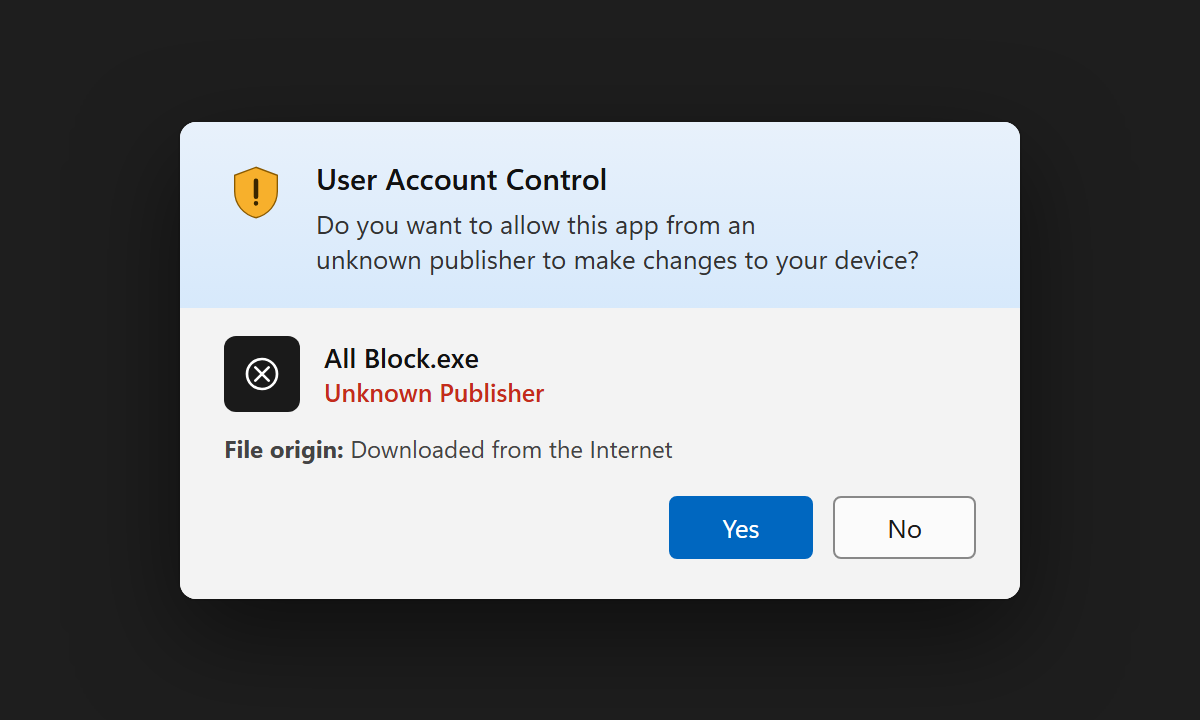
First run
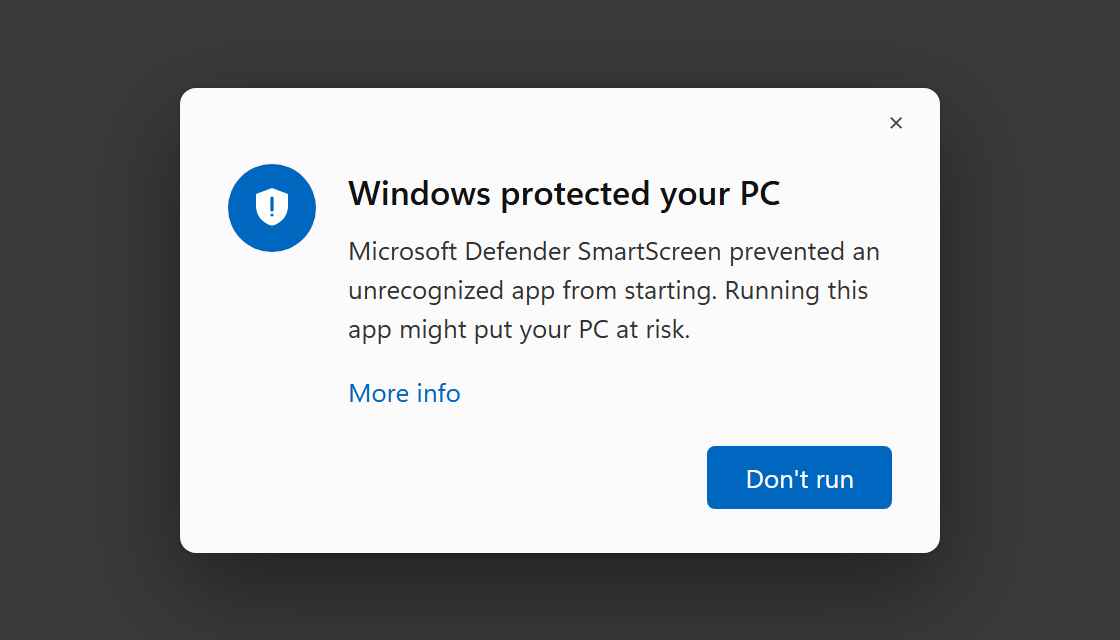
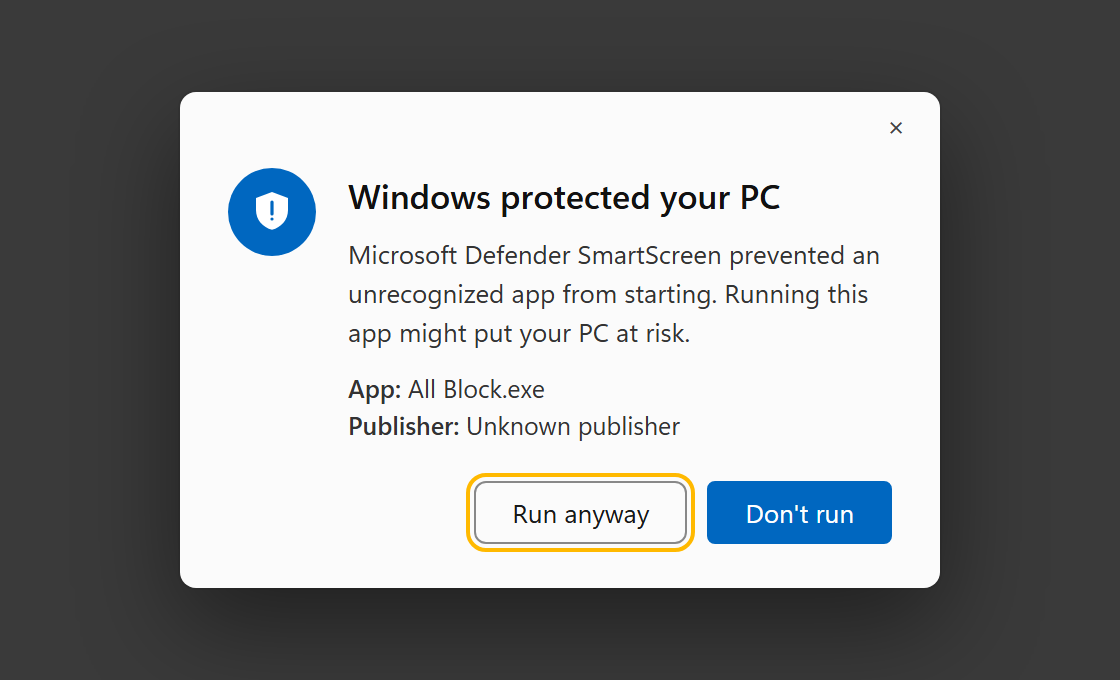
The All Block isn't code-signed yet, and SmartScreen warns about anything unsigned no matter what's in it. So you'll see this once, on the first launch. Here's the way through it.
About
 The Developer's story
I was so addicted to video games and social media, that I regularly
found myself awake in the late hours of the night, 3 or 4 am, gaming or
watching some useless YouTube or Instagram video. I would be tired the next
day, with barely enough energy to make it through the a day's work, study or to go to the gym.
I tried different app blockers to help control my screen time but they never really worked, because it was quite easy
to bypass them if I was determined. And if they did, they would be aufully confusing, expensive,
with annoying monthly subscriptions, and crazy prices to own any of them.
Also, they would often only work on a single device, with a separate app for each device, which was a pain to manage.
That's why I set out to make my own app that would remedy all these issues at once.
Windows and android are out, and macOS and iOS are coming soon.
The entire project was made, funded and maintained by myself, no team or investors, so your support would mean a ton!
Got an idea or spotted a bug? Email me — I'd love to hear it!
— Auzeo

A quieter tomorrow
One file, one wheel, and a computer that finally knows how to say no. Free to download, nothing to cancel.